
Dark Mode for NVDA
NVDA add-on
Version 0.9.4 (beta) · Updated · · Free and open source
Dark mode for NVDA's own user interface, including windows, dialogs, and menus. NVDA has no dark theme of its own yet, so its Settings, menus, and every dialog stay bright white however dark the rest of your Windows is. This add-on fixes that, and changes nothing about what NVDA says. Pick your own background and accent colours, or keep the standard dark grey and blue. NVDA's User Guide and Commands Quick Reference open in dark mode too, with every keyboard shortcut outlined in purple.
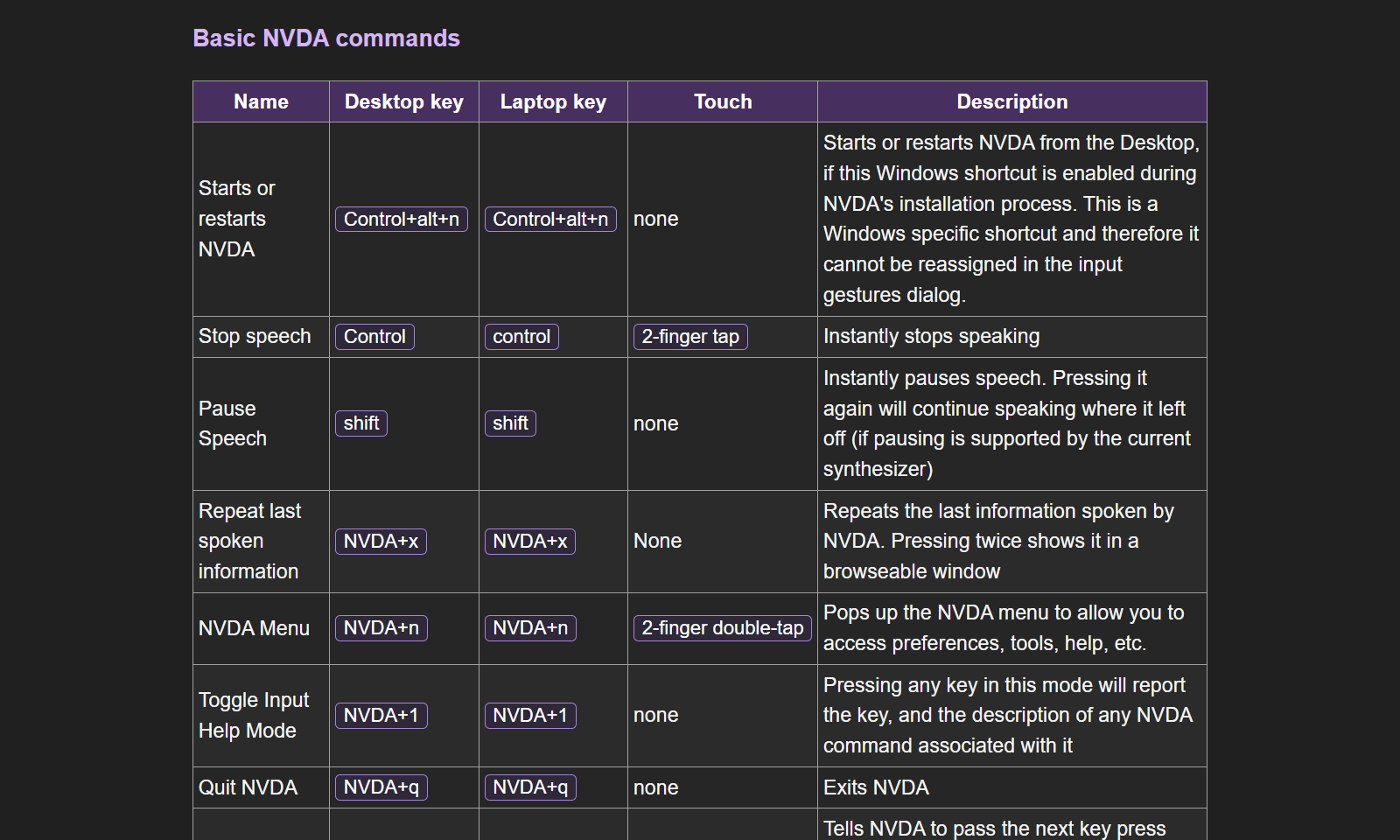
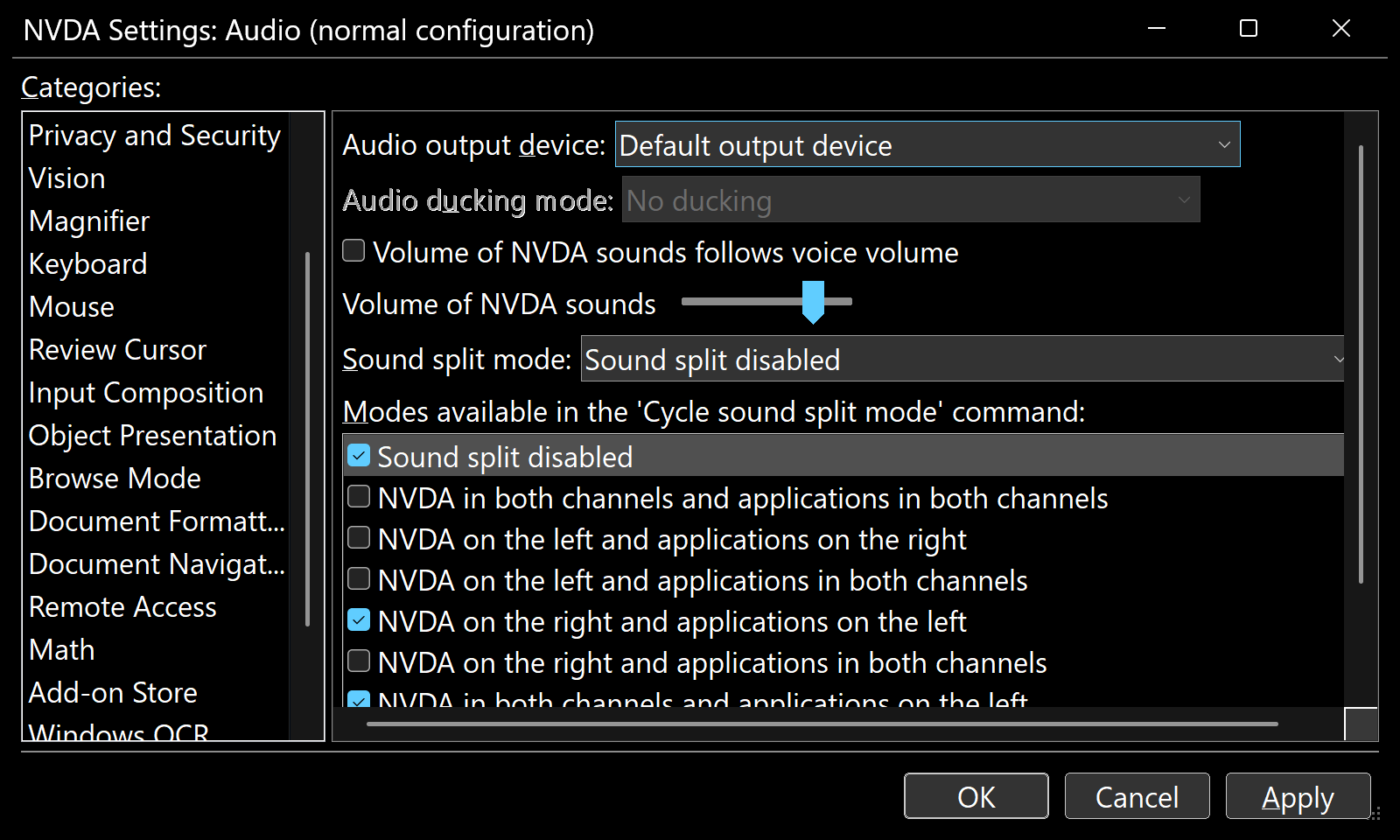
Every NVDA Window, Dark
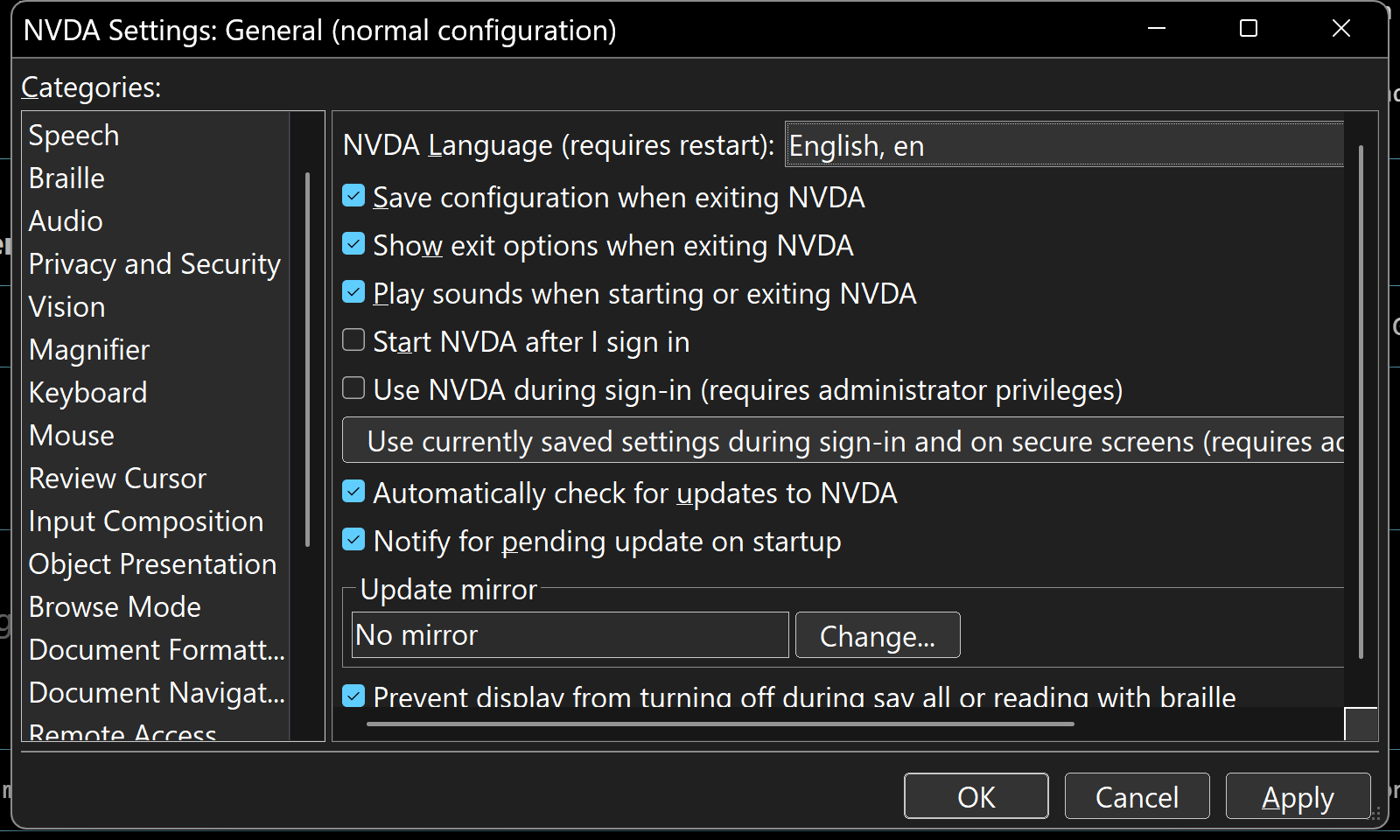
Settings, the Add-on Store, dictionaries, gestures, the log viewer, message boxes: everything NVDA draws itself goes dark, down to the title bar.
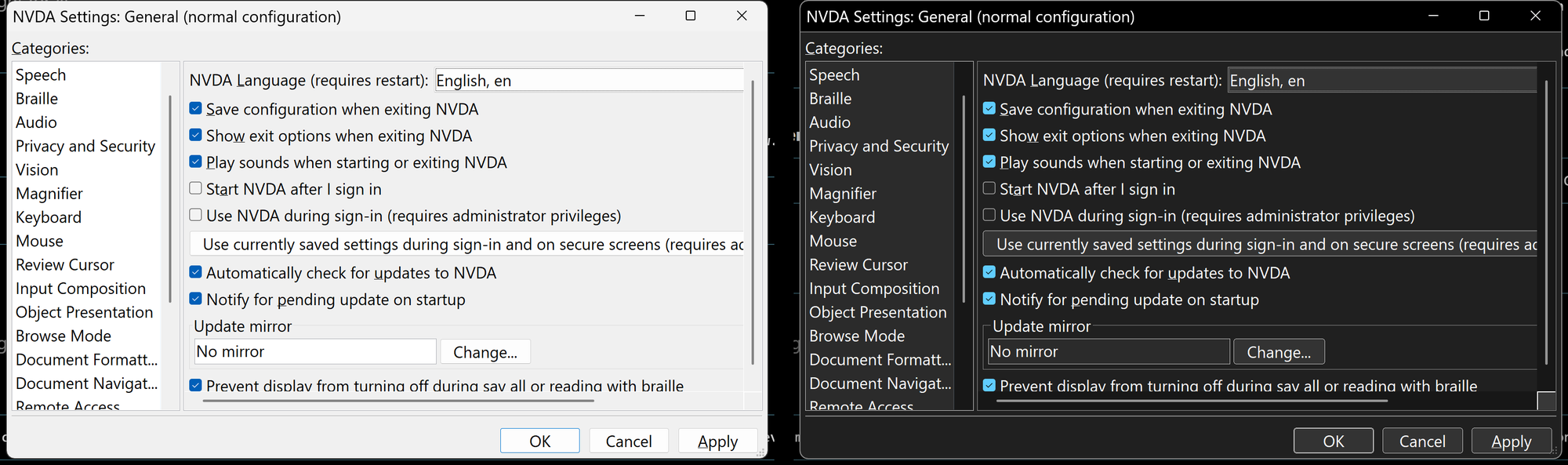
Before and After
Same dialog, same layout, same controls. Only the colours change, so nothing you know about NVDA's screens has to be relearned.
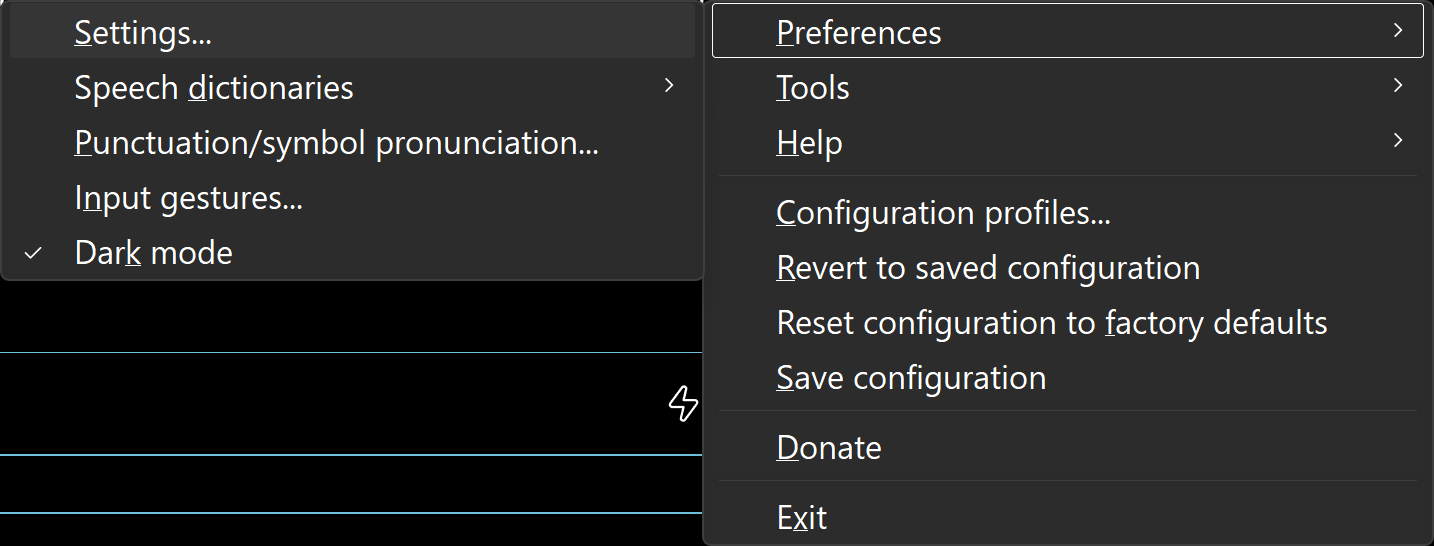
Dark Menus Too
The NVDA menu and all its submenus follow along, with a Dark mode item under Preferences to switch the add-on off and on in one step.
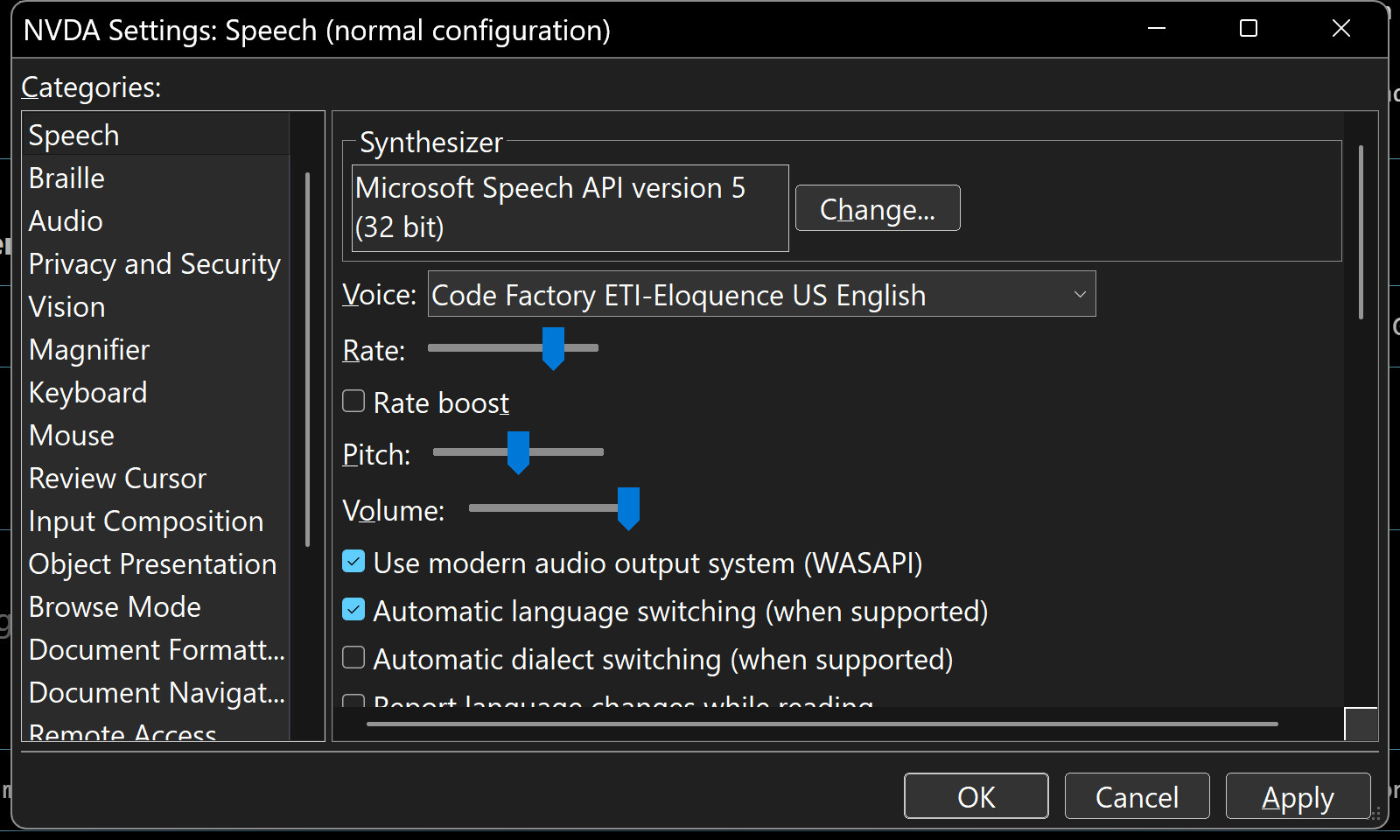
Readable Controls
Sliders, dropdowns, check boxes, and group boxes are all restyled for dark backgrounds, with white text and a clear blue focus ring wherever your keyboard focus lands.
Dark Help Pages
The User Guide, the Commands Quick Reference, What's New, and add-on help open in your browser in dark mode. Tables keep their contrast, and every keyboard shortcut sits in its own purple-outlined box so it stands out from the text around it.
Your Colours
Choose Black as the background and dialogs, lists, the Python console, the speech viewer and the help pages go pure black, with fields and buttons kept as they are so everything still has an edge. Seven very dark colours are there too, and an accent colour for focus rings, selected rows, check boxes and slider handles. The Settings dialog changes as you choose, so it is its own preview.
Screenshot 1 of 6: The NVDA Settings dialog in dark mode: a dark grey window with a black title bar, the Categories list on the left, and the General settings on the right, all in white text with blue check marks. Every NVDA Window, Dark. Settings, the Add-on Store, dictionaries, gestures, the log viewer, message boxes: everything NVDA draws itself goes dark, down to the title bar.
How to Install
- Press the Install button above to download
darkMode-0.9.4.nvda-addon. Your browser may ask you to confirm the download, since.nvda-addonfiles are uncommon. - Open the downloaded file (press Enter on it in your Downloads folder). NVDA shows a dialog titled Add-on Installation that says: “Are you sure you want to install this add-on? Only install add-ons from trusted sources. Addon: Dark Mode 0.9.4”. Choose Yes. (This first dialog is still light: the add-on is not running yet.)
- NVDA says “Please wait while the add-on is being installed”, then asks: “Changes were made to add-ons. You must restart NVDA for these changes to take effect. Would you like to restart now?” Choose Yes. NVDA restarts, and its windows and menus are dark from then on.
- Updating later works the same way, except the first dialog says “A version of this add-on is already installed. Would you like to update Dark Mode version 0.9.3 to version 0.9.4?” Choose Yes. You can also install from inside NVDA: NVDA menu, Tools, Add-on Store, then Install from external source, and pick the downloaded file.
To turn it off, use NVDA menu, Preferences, Dark mode, or untick the box in NVDA Settings, Dark Mode. Turning it off restarts NVDA so that everything comes back exactly as NVDA draws it on its own. You can also assign a key to the toggle under Input Gestures, in the Dark Mode category.
Key Features
- Dark everything: the NVDA menu, the Settings dialog and every category in it, the Add-on Store, dictionaries, input gestures, the log viewer, the Python console, message boxes, and the Welcome dialog.
- Dark help pages: the User Guide, the Commands Quick Reference, What's New, and add-on help open in your browser in dark mode, tables included, with every keyboard shortcut in a purple-outlined box and file names highlighted in dark purple. NVDA's own files are never changed.
- Black title bars and a light grey outline on every NVDA window, so dialogs stand out against the rest of your screen.
- A clear focus ring: your keyboard focus is shown as a solid ring in your accent colour (blue unless you change it), drawn just outside every control: fields, lists, buttons, tabs, check boxes, dropdowns, and sliders. The highlighted menu item gets the same outline.
- Focus outline thickness: a slider from 1 to 5 pixels (2 to start with) for every focus ring and the menu outline, for when a thin line is too easy to lose.
- Your own colours: a Background setting (dark grey, black, lighter grey, or a very dark red, orange, green, teal, blue, purple or pink) for dialogs, lists, the Python console, the speech viewer and the help pages, and an Accent setting (blue, red, orange, yellow, green, teal, purple or pink) for focus rings, the menu outline, selected rows, check boxes, radio buttons and slider handles. Any background goes with any accent, every change shows in the Settings dialog as you make it, and a Reset to Dark Mode defaults button puts it all back.
- Bright contrast: two check boxes that put selected rows, or check boxes and slider handles, in the full accent colour with black text and marks: the classic yellow on black with the Yellow accent.
- Check boxes and radio buttons drawn by the add-on: a light grey border in every state and a bold white tick or dot when checked, so they match whichever accent you choose instead of Windows' own blue.
- Three ways to switch: the NVDA menu (Preferences, Dark mode), the Dark Mode settings category, or a key you assign under Input Gestures.
- Steps aside for High Contrast: while a Windows High Contrast theme is on, the add-on turns itself off so it never fights your contrast settings.
Accessibility
- The add-on changes only how NVDA's windows are painted, never what the controls are. Check boxes are still check boxes, lists are still lists, and NVDA announces every control exactly as it did before.
- Text is white on dark grey (or on the background you choose), fields are a slightly lighter grey than the window behind them, and disabled controls are dimmed but still readable.
- Keyboard focus is shown with a bright ring in your accent colour (blue to start with), just outside the control; hover states on buttons, tabs, and slider handles are brighter than their resting state. Every colour pairing was measured: focus rings are at least 3:1 against what they sit on, and white text on a selected row at least 4.5:1.
- Built and tested by a low vision NVDA user, on Windows 11 with a 4K display at 225% scaling.
Requirements and Known Limits
- NVDA 2026.1 or later, on Windows 10 or 11. Black title bars and the grey window outline need Windows 11; on Windows 10 those two fall back to Windows' standard dark title bar.
- Hopefully a stopgap. NVDA has no dark mode of its own yet. This add-on fills the gap for now, and the hope is that NV Access builds a native dark mode into NVDA, at which point this add-on can retire.
- A brief flash of white is possible. Because this is a workaround rather than a built-in feature, some windows may show white for a split second before they turn dark: Windows paints a new window light first, and the add-on catches up a moment later. The common dialogs and menus are covered; a rarely used window can still flash.
- Beta. This is the first public version. It relies on the same unofficial dark-mode switches in Windows that File Explorer uses, so a future Windows or NVDA update could change how some pieces look. If something looks wrong, tell us.
- The small "Checking for update" box is a Windows-native dialog drawn by Windows itself; it stays light. Only a change inside NVDA can fix that.
- Menu hover colours are whatever Windows draws for dark menus.
- It darkens NVDA itself, not other programs.
Open Source
Dark Mode is free software under the GNU General Public License, version 2. The source code, the licence, and the development tools are all in the dark-mode-for-nvda repository on GitHub.
Categories
Productivity NVDA add-ons